Family account sharing is a Pro feature! If need to upgrade to a pro plan, go to app.collatracking.com, or if you don't want to, you can still use temporary link sharing
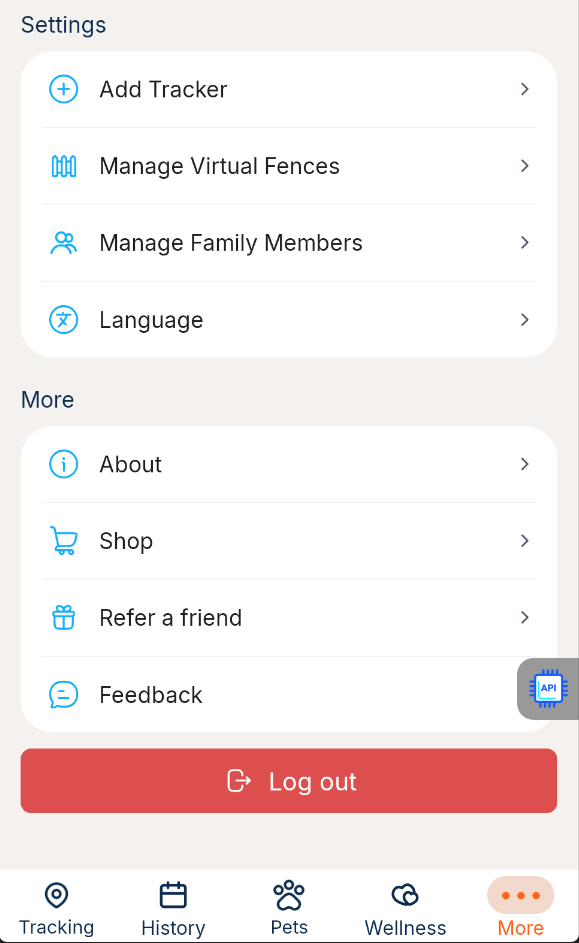
1. Please go to the More tab, and click Manage Family Members in the Settings section
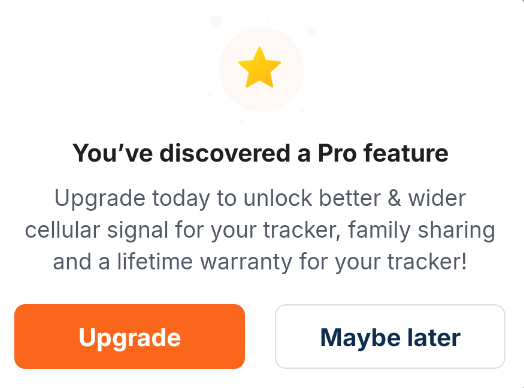
2. If you aren't on a pro plan, you'll see this message, where you can click Upgrade to upgrade your plan
3. You'll then see a list of family members or friends who you have already invited, or a blank list if you're about to invite your first person to access your account. Click Invite Members at the bottom of the screen to see a new section where you can enter an email address to invite.

4. Any email you enter needs to a valid email address, and not be the email of someone who already has a colla account for their own pet. (If you want to give someone access who already has a colla account, see if they can make a new email address). Then press Invite Members.

5. If the email is entered correctly and they don't have a colla account already, you'll see a message saying that the invite was successfully sent. Now it's over to them!
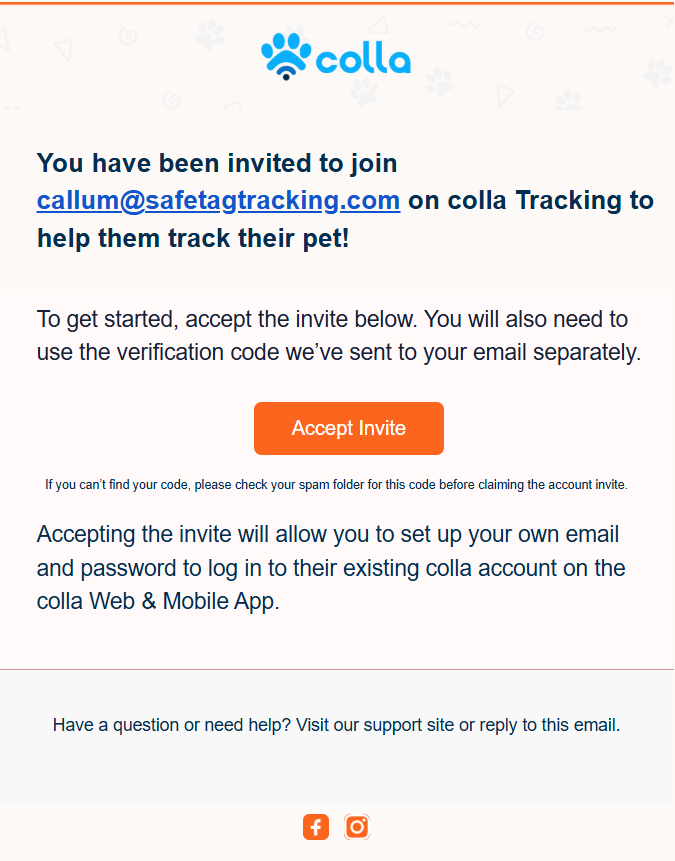
6. Your invitee will receive the following email. When they click Accept Invite, this will open a link to a special registration page where they can make a password that they can use along with the email address you entered to access your account!
If you have any issues setting this up, just email us and let us know!
Was this article helpful?
That’s Great!
Thank you for your feedback
Sorry! We couldn't be helpful
Thank you for your feedback
Feedback sent
We appreciate your effort and will try to fix the article