What are power-saving zones?
Power-saving zones help you save your pet tracker's battery life by putting the tracker's GPS to sleep when your pet is in a safe area, such as your home.
How do power-saving zones work?
When the tracker detects your home (or a family member or friend's home) Wi-Fi network, the tracker's GPS module goes to sleep. This saves a lot of power, and then when you and your pet leave this location, the GPS module will wake back up and resume tracking like normal.
During this time, other features should be unaffected, but when you're inside a building, we can't guarantee that you can use Bluetooth features or read battery level or signal strength accurately.)
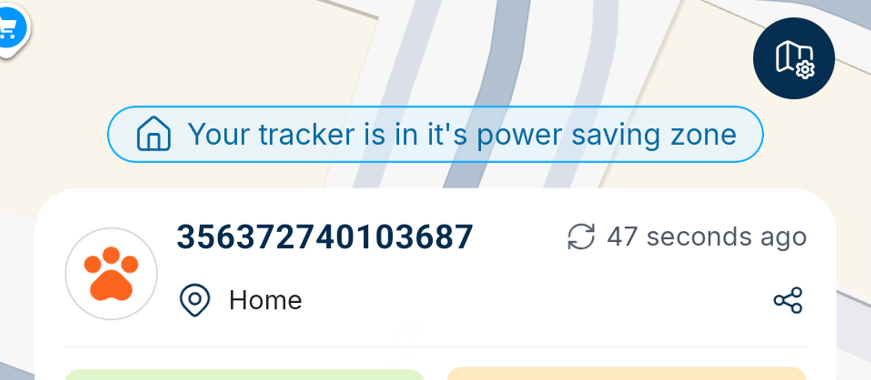
You'll know your trackers are in a power-saving zone with this blue status above the tracker card on the home screen tab.
How do I set it up?
1. First, make sure your mobile device has a strong internet connection, and your pet tracker is within 1 metre of your Wi-Fi router.
2. Go to the Pets tab, and select the pet you want to set up a power-saving zone for in the top right of the screen.
3. Click the Power Saving Zone option
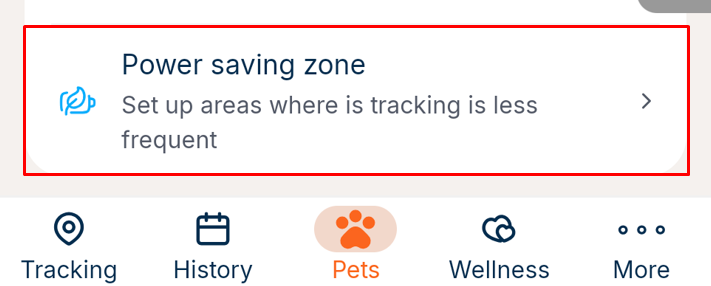
4. You'll then see a screen with the list of any other Power Saving Zones that you've set up. You can click on them to delete or edit them.
5. To create a new Power-saving zone, click the Create Zone button at the bottom of the screen.

Your tracker needs to be online and have a 4G connection to set up the zone. If it's offline, you should see an error at this point.
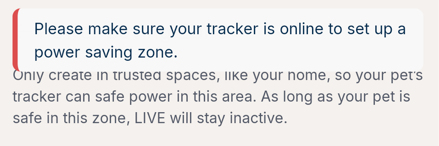
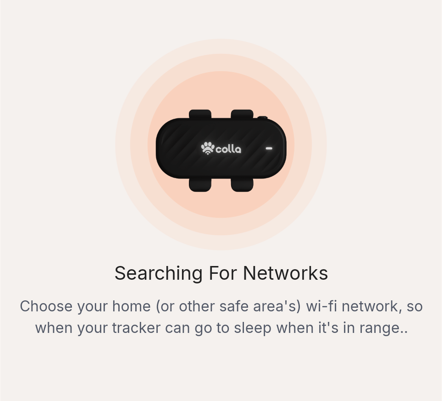
6. If your tracker is online and your phone has a strong internet connection, you should see an image of your tracker scanning the local network to find a list of local Wi-Fi networks that it can use to know it's at your desired safe area, like your home. Please allow up to 60 seconds for scanning. If you get an error, please try again.
7. Once the local networks have loaded, you'll see a list of Wi-Fi networks. If you don't see yours, make sure your tracker is as close to your Wi-Fi network as possible and try again.
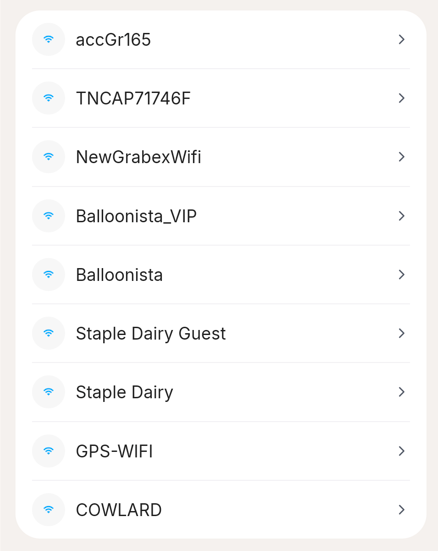
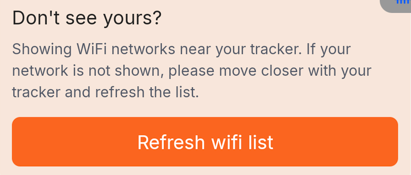
8. Press your home's Wi-Fi network, and you should see a map appear.
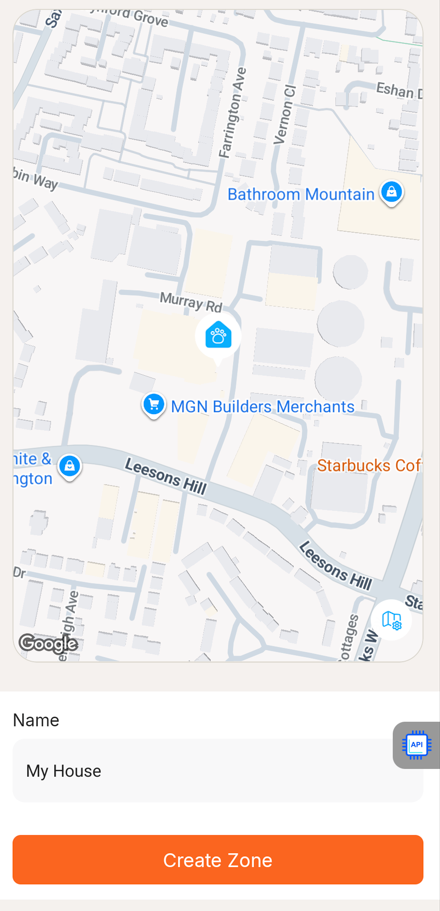
9. Move the map to centre your home, where the Wi-Fi network is
10. Enter a name, like "My House", or "Mum's House" or "The Office"
11. Press Create Zone. At this point, your app will connect to the tracker and tell it to put it's GPS to sleep when it's nearby this network. If your phone or tracker loses 4G connection and you see an error, just start the process again and it should work in no time.
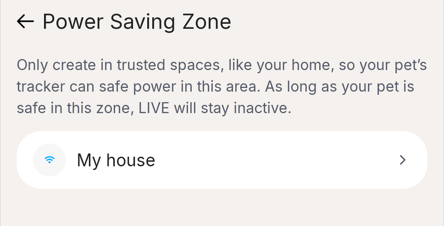
12. If the setup was successful, you should be taken back to the Power-saving zone list page, and you should see the name of your new zone.
Was this article helpful?
That’s Great!
Thank you for your feedback
Sorry! We couldn't be helpful
Thank you for your feedback
Feedback sent
We appreciate your effort and will try to fix the article