There are a range of features available to help you track your pet easily and simply on the Home Tab map, with as much information as you need, or as straightforward as you need the experience to be.
The History tab has its own map settings that don't match exactly. Changing the Map Settings will save these preferences if you close and re-open the app.
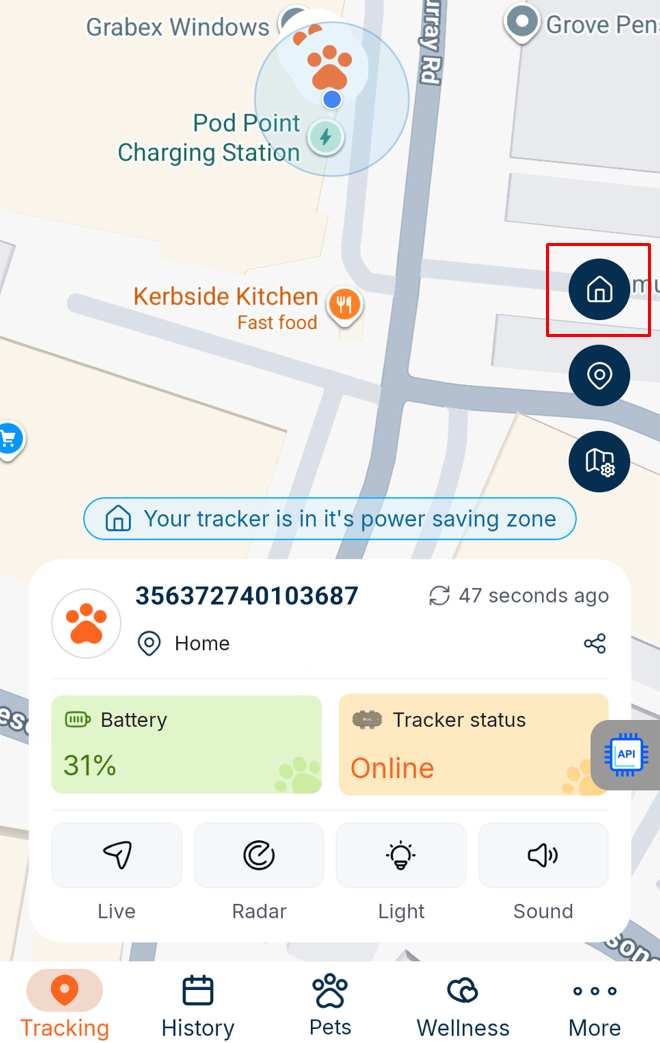
1. To access the map settings, click the Map Settings icon on the home screen. It has a map with a cog in front of it.
2. You should see the map settings menu appear with a list of features and toggles. This screenshot shows the default settings:
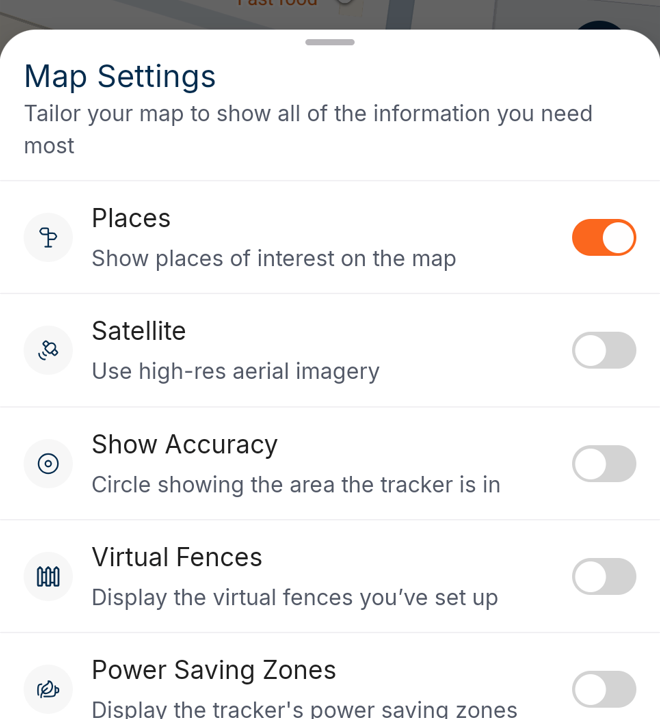
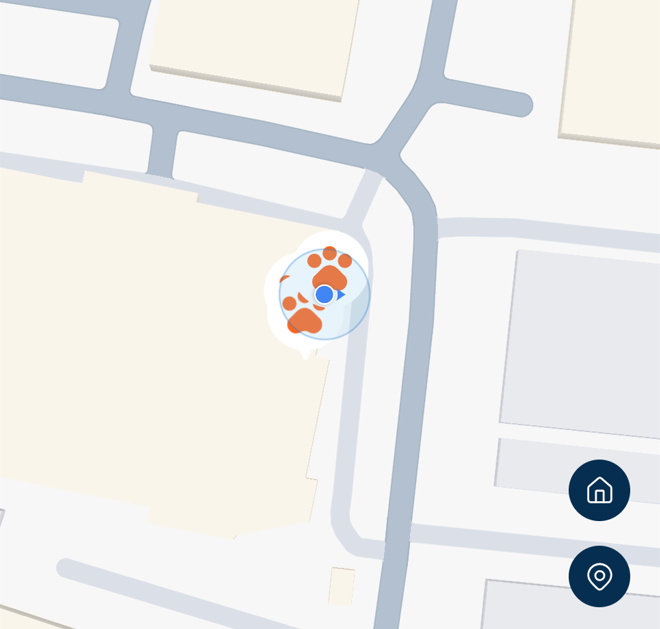
- Places - Disabling this option hides the labels provided by Google e.g. place names, town names, road names, shops, and points of interest from the map. This provides a clutter-free experience, but you won't be able to see any addresses or house numbers on the map itself.
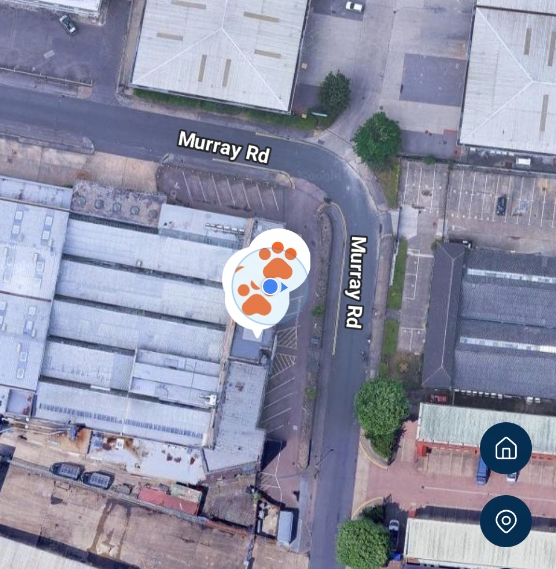
- Satellite Mode - This overlays the map with Google Satellite Imagery, similar to the satellite mode in any navigation app you'll have used before. Please keep in mind that any outdated imagery is handled by Google and is unfortunately out of our control.
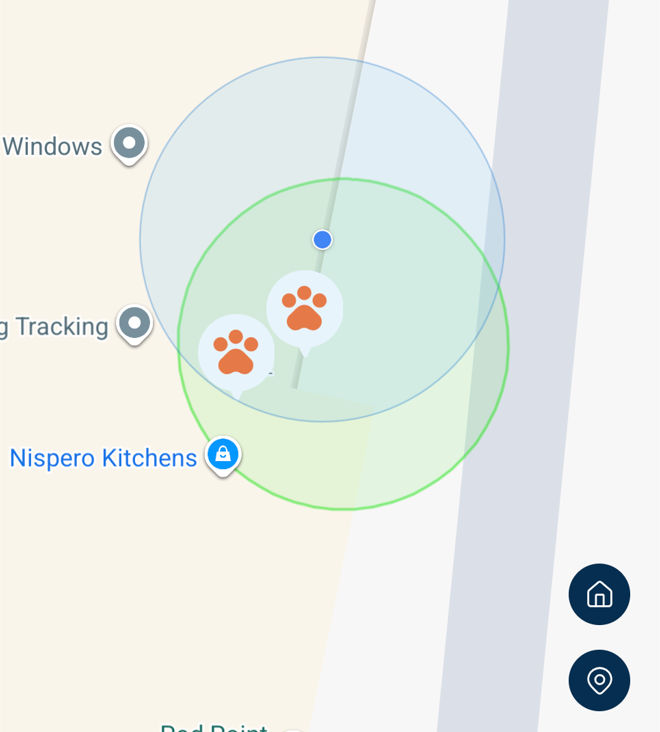
- Show Accuracy - This shows a 10m circle around your tracker that shows the +/- 10m rated accuracy of the tracker's position, so you can see the area your pet is definitely inside, even if there's GPS interference nearby.
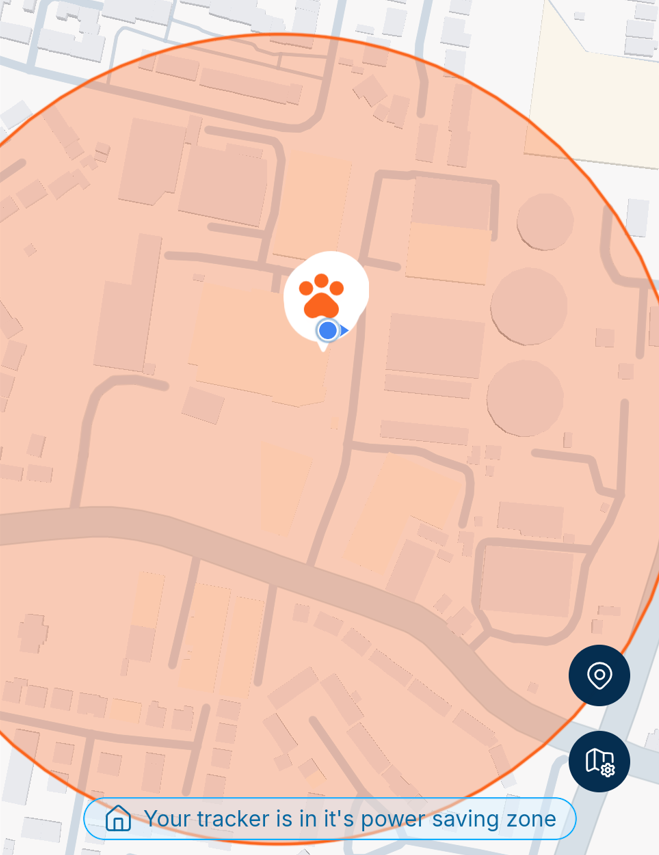
- Virtual Fences - This displays any virtual fences that have been enabled for the selected pet with an orange circle. (The pet shown at the bottom of the screen).
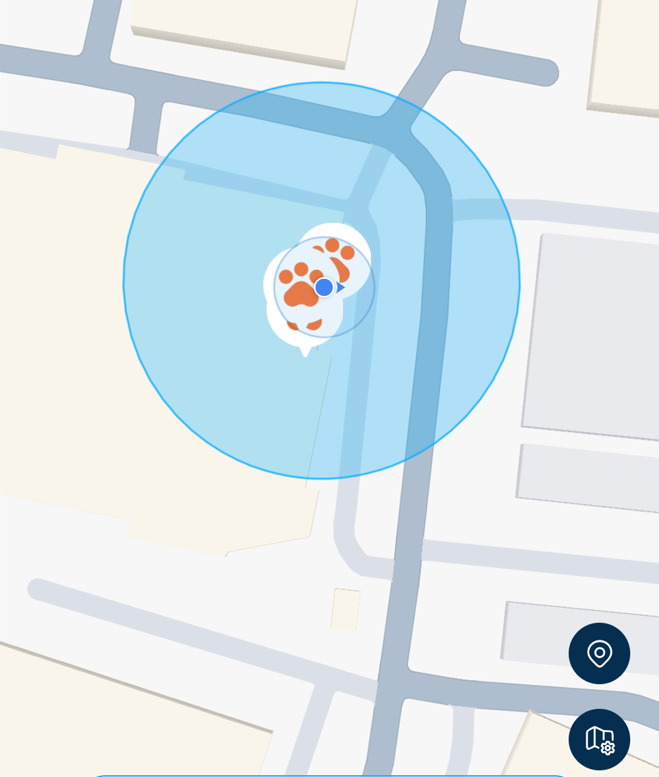
- Power Saving Zones - This displays any power-saving zones that have been set up for the selected pet with a blue circle.
Was this article helpful?
That’s Great!
Thank you for your feedback
Sorry! We couldn't be helpful
Thank you for your feedback
Feedback sent
We appreciate your effort and will try to fix the article